Reference
Game Controls & Settings
Learn every default key in Alicia Online and discover what each settings tab does. Adjust your controls, graphics, sounds, privacy, and macros so the game feels perfect on your PC.
Open Settings fast
Press 8 on your keyboard or tap the gear icon in the lower-right corner of the game screen.
Primary + Secondary keys
You can bind two keys for most actions. Click the slot, press the key you want, and the game saves it instantly.
Respect other players
Macros and chat commands are fun, but please avoid spamming them - nobody enjoys endless pop-ups.
Game Controls
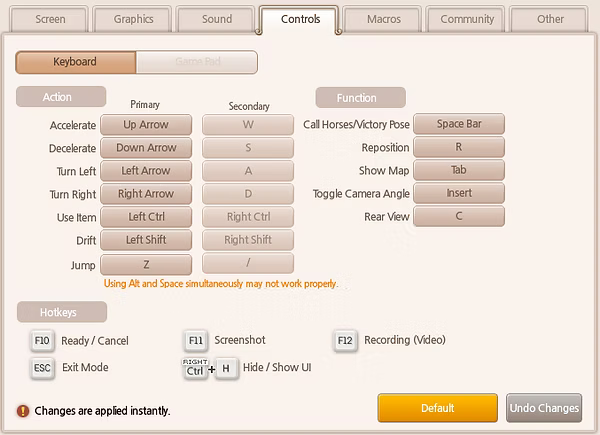
Like other games, Alicia Online allows you to customize your game controls. Press 8 or click the gear icon to open Settings, then select the Control tab. Many entries have a Primary and Secondary key, so you can keep WASD and arrow bindings side by side. Click the box, press the key you prefer, and the launcher will update it immediately.
Main controls
- W / Up Arrow: Move forward
- S / Down Arrow: Move backward
- A / Left Arrow: Turn left
- D / Right Arrow: Turn right
- Ctrl + H: Hide all UI icons (press again to reveal them)
- Esc: Quit a race room while you wait for the countdown
- R: Teleport to the main farm/town area or rewind during a race
Horse controls
- Shift: Drift
- Ctrl: Use Boost / Magic spell
- Tab: Show the full race map and racers
- Z or /: Jump (or rear when you stand still)
Character & UI
- Space: Call your horses
- F10: Activate the “Ready” status in a race room
- F11: Take a screenshot
- F12: Record a video
- 1: Horse Info
- 2: Character Info
- 3: Messenger
- 4: Mail Box
- 5: Quests
- 6: Ranking
- 7: Pets
- 8: Settings / Exit
To navigate to controls faster, press 8 on your keyboard to open Settings or press the gear icon in the bottom right corner of your game window. Then click the Control tab and customize everything from there.
Game Settings
Every tab in the Settings window changes a different part of Alicia Online. Explore each tab below to learn what every slider, button, and checkbox does, then tweak them until the game looks and feels right.
-
Screen
Resolution & Screen Mode
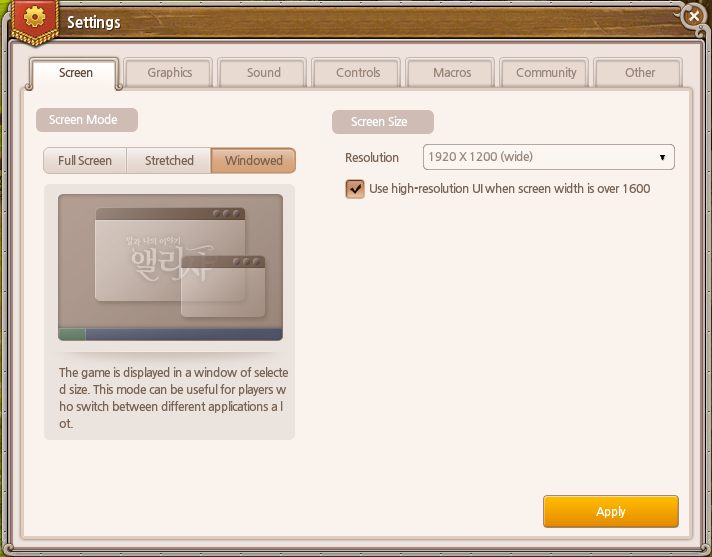
In this tab, you can change the resolution of your game and decide which screen mode you prefer to play on. Everything is straightforward - if you are new, test the available “Screen Mode” options and verify which resolution works best for your laptop or desktop. If you use a wider monitor, the Full Screen option will cut off the top and bottom of the image because Alicia Online does not support extra-wide ratios, so borderless windowed mode is safer.
-
Graphics
Texture & Effect Quality
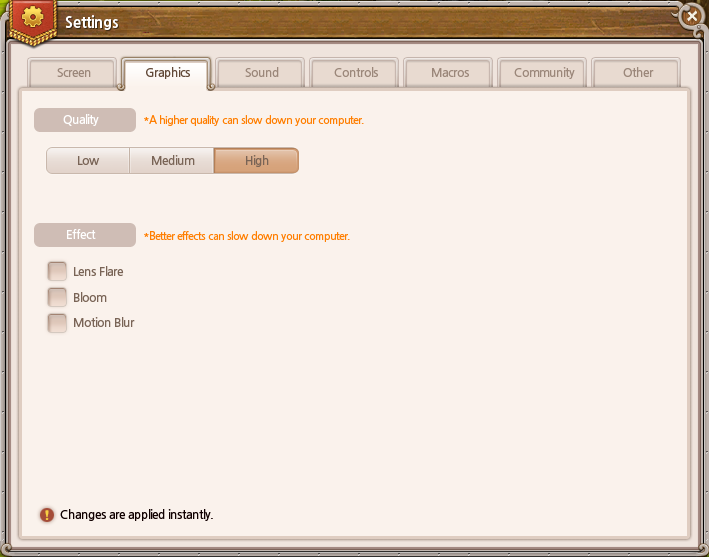
Here you change the graphics quality of the game. If you choose “Effects” on a very old PC/laptop, it might look worse or run poorly, but that should not be a problem if your hardware can run modern AAA titles - Alicia Online is very easy to run. Pick the texture quality that matches your system.
-
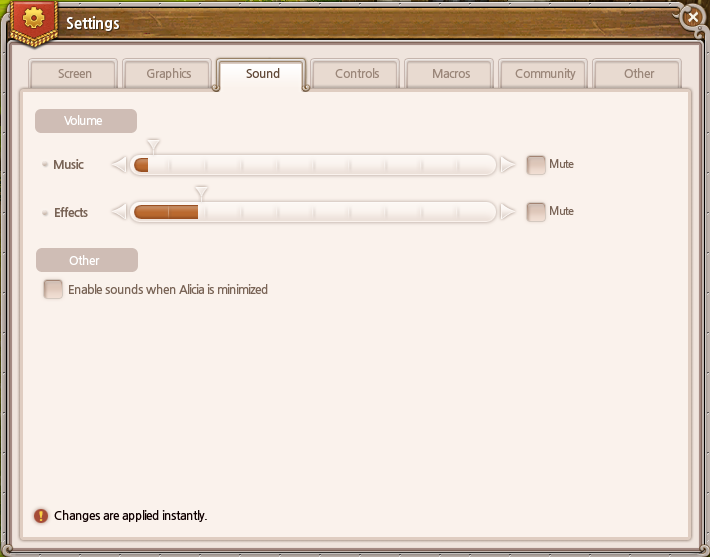
Sounds
Music & Effect Volume
Choose the volume you like for background music or other in-game sounds. Play around and see what suits you best. You can control the music volume and game effect sounds separately - I personally keep both pretty low.
-
Controls
Primary & Secondary Bindings
Configure any in-game control directly inside this tab. The game already sets defaults, but you can change them at any time. Click on the box and press the specific key you wish to use. More detailed information about the default controls is listed in the section above.
-
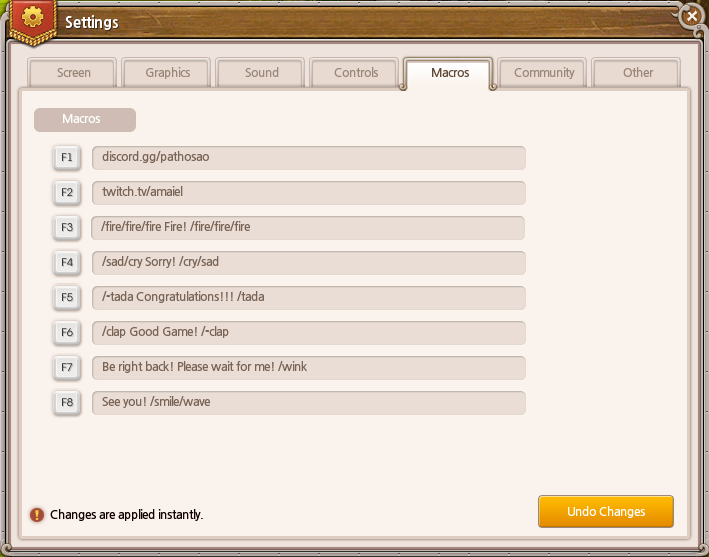
Micros
Custom Messages
Micros let you set up custom messages that can be used during a race or anywhere inside Alicia Online using the numbered keys. They are fully customizable, just have fun - but do not spam them, because repeated messages can be irritating for others.
-
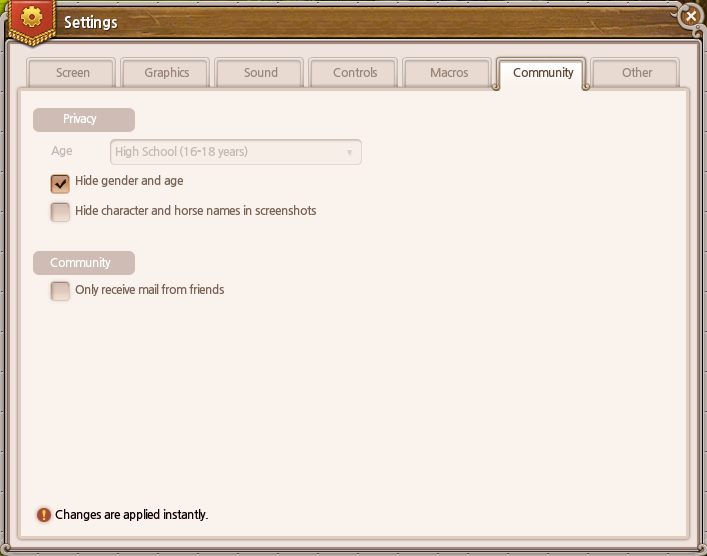
Community
Privacy & Inbox
Modify your privacy appearance inside the game by choosing whether to show people your age or gender - please do not use it for doggy stuff. You can also disable or enable messages from people outside your friend list.
-
Other
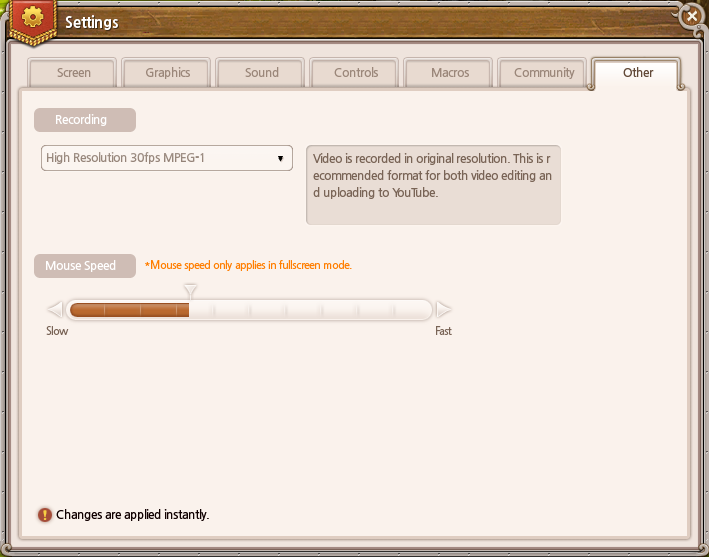
Recording & Mouse Speed
Choose how to record using the in-game recording feature. Take a look around this tab and see which options work best for you. The default recording shortcut is the F12 key. The bar below the recording settings lets you customize the in-game mouse speed.